For many people who work with iPhones and iPads, 3uTools is a well-known name. On Windows, it offers a large collection of tools for flashing firmware, creating backups, managing files, checking device information, and fixing software issues. Because of this, many users who switch to Apple’s desktop platform start searching for 3utools for mac.
However, things become more complicated when trying to find a Mac version of the software. Unlike Windows, macOS uses a different system structure and different device communication methods. As a result, iPhone flashing, firmware management, and advanced device recovery on a Mac often require a different set of tools.
Understanding the available options can help users choose the safest and most reliable way to manage iOS devices on macOS.
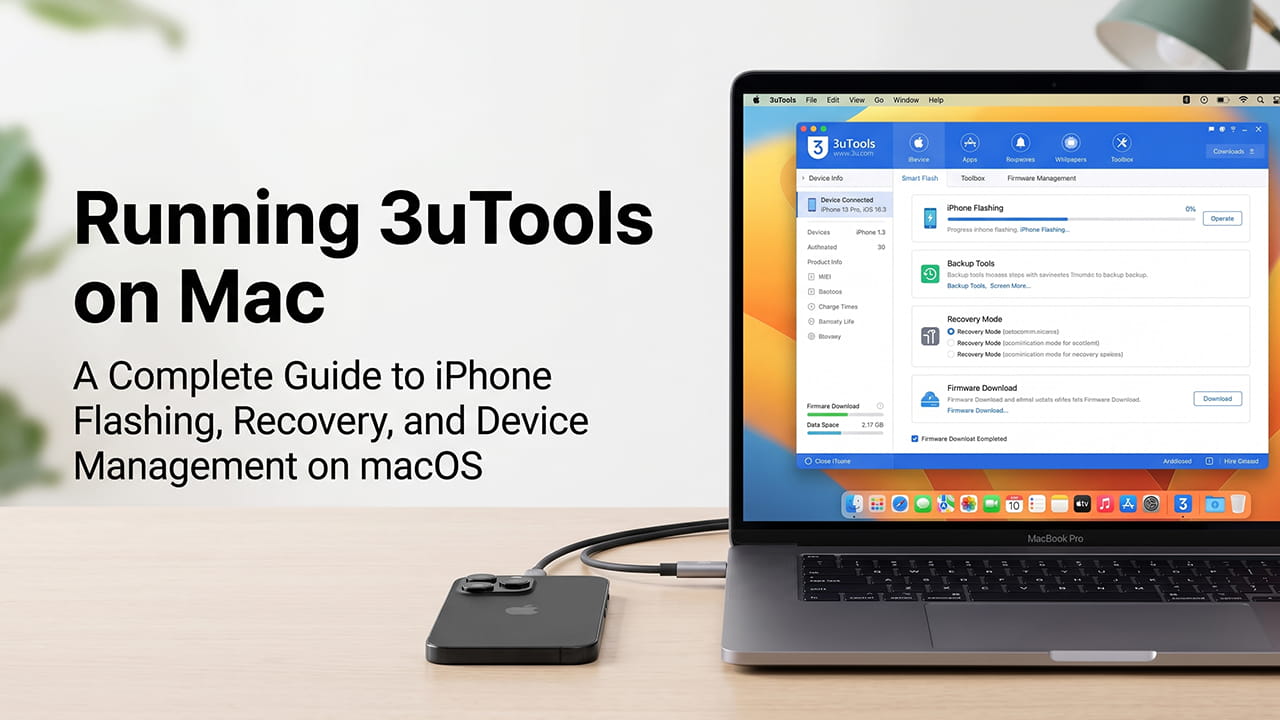
The Truth About 3uTools on macOS
Many websites claim to offer Mac versions of 3uTools. Some even provide download buttons that appear to lead to a macOS installer. However, there is currently no official native version of 3uTools designed for macOS.
The software was originally built for the Windows operating system. It relies on Windows-specific drivers and services to communicate with iPhones and iPads, especially when devices enter Recovery Mode or DFU (Device Firmware Update) Mode.
Because of these Windows dependencies, the program cannot run directly on macOS like a normal Mac application. Many unofficial downloads found online are either outdated packages, modified files, or software that has no connection to the original program.
As a result, users looking for 3utools for mac usually discover that running the software requires an additional compatibility layer instead of a direct installation.
Ways to Run 3uTools on a Mac
Although there is no native Mac version, some methods allow the Windows version of the software to run on macOS.
Virtual Machines (Parallels Desktop or VMware Fusion)
One of the most common solutions is virtualization. This process allows Windows to run inside a virtual machine while macOS remains the main operating system.
Programs such as Parallels Desktop and VMware Fusion make this possible. These applications support both older Intel-based Macs and newer Apple Silicon devices, including M1, M2, and M3 models.
After Windows is installed inside the virtual machine, the iPhone can be connected through USB and assigned to the Windows environment. Once connected, the standard Windows version of 3uTools can recognize the device and perform tasks such as:
- Firmware flashing
- Device diagnostics
- Backup management
- Data verification
- Recovery operations
This approach allows Mac users to access most of the software’s features without purchasing a separate Windows computer.
Boot Camp (Intel Macs Only)
Users with older Intel-based Macs have another option called Boot Camp.
Boot Camp is Apple’s built-in utility that allows Windows to be installed on a separate partition of the Mac’s internal storage. Instead of running Windows inside macOS, the computer starts directly into Windows.
This setup gives Windows full access to the hardware. Because of that, USB communication is often more stable during firmware flashing and recovery procedures.
For tasks that require continuous communication with an iPhone, such as DFU restores, Boot Camp can provide a smoother experience than virtualization.
However, Boot Camp is not available on Apple Silicon Macs. Devices powered by M1, M2, or M3 chips cannot use this method.
Native macOS Alternatives for iOS Management
Running Windows inside a virtual machine uses additional system resources. In some cases, USB connections can disconnect when an iPhone switches between normal mode, Recovery Mode, and DFU Mode.
Because of this, many users prefer native macOS applications for firmware management and device recovery.
Several tools already provide important features without requiring Windows.
| Tool Name | Main Purpose | Key Advantage | Platform Support |
|---|---|---|---|
| Apple Configurator | Device deployment and firmware restoration | Official Apple solution with strong stability | Intel and Apple Silicon |
| Finder | Backup, restore, and update management | Built directly into macOS | Native macOS |
| Tenorshare Reiboot | Recovery Mode and boot issue repairs | Easy recovery controls | Intel and Apple Silicon |
| MobiKin Assistant for iOS | File and data management | Detailed data access and extraction | Intel and Apple Silicon |
Apple Configurator: The Professional Option
Apple Configurator is Apple’s official device management tool. It is designed for advanced iPhone, iPad, and enterprise device administration.
For users searching for a Mac replacement for the flashing functions of 3uTools, Apple Configurator is often the closest option available.
The software can perform advanced firmware operations and device recovery procedures.
Two important recovery features include:
Revive Device
The Revive option updates the device firmware without removing user data whenever possible.
This process can help repair system-related problems while preserving existing information.
Restore Device
The Restore option completely erases the device.
A fresh copy of the latest supported iOS version is then installed, returning the iPhone or iPad to factory settings.
This method is often used when a device becomes unresponsive, stuck in a boot loop, or experiences major software corruption.
Finder: The Built-In macOS Solution
Since macOS Catalina, Apple moved iPhone management features from iTunes into Finder.
When an iPhone connects through USB, it appears in the Finder sidebar. Users can then perform backups, updates, synchronization, and restoration tasks directly from the operating system.
Finder also supports manual firmware installation.
By holding the Option key while selecting “Check for Update” or “Restore iPhone,” users can choose an IPSW firmware file stored on the Mac.
This feature provides more control over firmware installation and device recovery without requiring additional software.
For many users, Finder already includes the most important tools needed for everyday iPhone management.
Technical Challenges of iPhone Flashing on Mac
Whether using virtualization software or native applications, several technical factors affect firmware flashing and device recovery.
Understanding these challenges can help avoid failed installations and connection problems.
USB Driver Pass-Through Issues
Virtual machines sometimes struggle with USB device transitions.
For example, an iPhone may disconnect and reconnect several times while entering Recovery Mode or DFU Mode.
During this process, macOS may temporarily take control of the device before Windows inside the virtual machine can reconnect to it.
This interruption can cause flashing failures or communication errors.
Because of this, stable USB handling remains one of the biggest challenges when using Windows-based iPhone tools on a Mac.
Firmware Verification Requirements
Every iOS firmware installation must pass Apple’s verification process.
When a firmware file is installed, Apple checks whether that version is currently being signed for the connected device model.
If the firmware version is no longer signed, the installation will fail regardless of the software being used.
This verification process applies to all flashing tools, including official and third-party solutions.
Privacy and Security Considerations
Many third-party utilities collect detailed hardware information from connected devices.
This information may include:
- Device serial numbers
- Battery health data
- Component history
- Calibration records
- Hardware diagnostic information
While these details can help with troubleshooting, some users prefer keeping device communication within Apple’s official ecosystem.
Tools such as Finder and Apple Configurator operate through Apple’s supported framework and provide a more controlled environment for firmware management and device recovery.
Final Thoughts
Many Mac users search for 3utools for mac expecting to find a direct macOS version of the popular Windows utility. However, no official native Mac edition currently exists.
Those who need the software can run the Windows version through virtualization software or, on older Intel Macs, through Boot Camp. At the same time, native macOS tools already provide many of the features required for backups, firmware restoration, recovery procedures, and device management.
Apple Configurator offers advanced flashing and recovery functions, while Finder provides a simple built-in solution for backups, updates, and restores. Choosing the right approach depends on the specific task, the Mac hardware being used, and the level of control needed over the connected iOS device.