Moving large video files, high-quality photos, and mobile app data between a phone and a computer can take a lot of time. USB cables often stop working because of driver problems or connection errors. Cloud storage can also create issues because it uses internet data and may raise privacy concerns.
Easyshare for PC gives a simple and faster solution. The software creates a direct wireless connection between a smartphone and a Windows computer. Because of this, files move locally without using cloud servers. Vivo Communication Technology developed this tool to help users transfer files quickly, safely, and without ads.
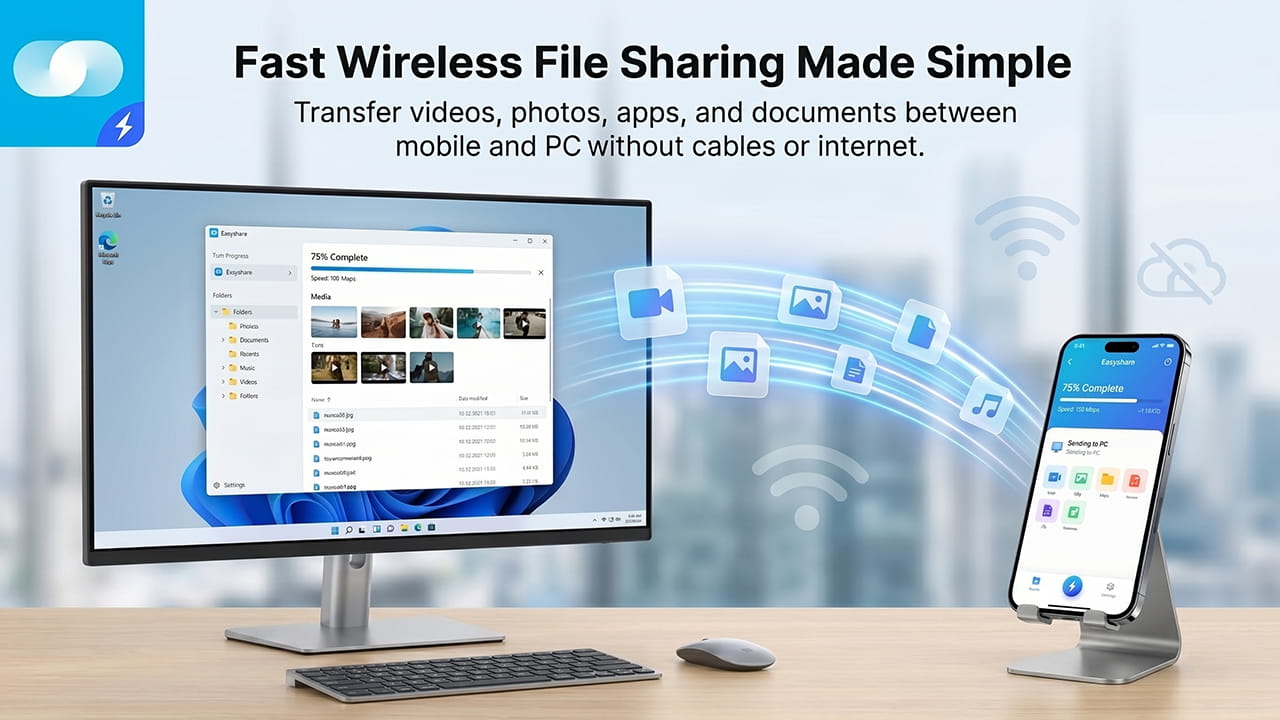
Understanding How Easyshare for PC Works
Easyshare for PC works through a local wireless connection. Instead of uploading files to online servers, the software creates a direct connection between devices on the same network.
This setup improves speed and also protects user privacy. Since files stay inside the local network, internet bandwidth is not used during transfers. As a result, large files move much faster than many cloud-based methods.
How WLAN and Wi-Fi Direct Work
The system mainly uses Local Area Network (LAN) technology and Wi-Fi Direct connections. These technologies allow the phone and computer to communicate directly.
When both devices connect to the same Wi-Fi network, the software creates a private transfer path. Files then move through the local wireless signal instead of traveling through the internet.
Even without a home router, the connection can still work. A mobile hotspot can create the local network needed for file sharing. Therefore, users can transfer files almost anywhere.
Main Features of Easyshare for PC
Easyshare for PC includes several useful features for daily file management and backups.
Ad-Free Interface
Many free file transfer tools show too many ads. Pop-ups can interrupt transfers and slow down the system. Some ads may even create security risks.
Easyshare for PC avoids these problems completely. The interface stays clean and simple. Because of this, system resources focus only on transferring files.
Fast Wireless Transfer Speeds
Speed is one of the biggest advantages of this software. Under good wireless conditions, transfer speeds can reach up to:
40 Mbps40\text{ Mbps}
At this speed, large HD movies and photo folders can move within seconds instead of minutes.
Large File Support
The software supports very large files without strict limits. Videos, documents, music collections, and photo libraries can transfer together in one session.
In addition, the original file quality stays unchanged. Videos and images keep their full resolution after the transfer finishes.
Step-by-Step Setup Guide for Windows and Mobile
Setting up Easyshare for PC is simple. However, both devices must connect correctly before transfers can begin.
1. Install the Desktop Software
The desktop client requires Windows 10 or newer versions.
First, download the installer from the official software page using a computer browser. Next, open the installer and follow the setup instructions. After installation finishes, launch the application.
2. Connect Both Devices to the Same Network
The computer and smartphone must use the same Wi-Fi connection. This step is very important because the software depends on local wireless communication.
If a router is not available, a mobile hotspot can replace it. Once both devices join the same network, the connection process becomes much easier.
3. Scan the QR Code
Open the mobile app and select the computer connection option. The desktop program will show a QR code on the screen.
Use the phone camera inside the app to scan the code. This process creates a secure handshake between both devices.
4. Allow Permissions
The mobile app may ask for storage, location, or local network permissions. These permissions help the software access files and complete transfers properly.
After approval, the connection becomes active. Users can then start moving files between devices immediately.
Using Easyshare for PC for Backups
Easyshare for PC is not only for simple file sharing. It also works as a local backup solution for important mobile data.
Users can store files safely on a computer without depending on online backup services.
Supported File Types
The software supports many common file formats.
| Data Type | Supported Formats | Notes |
|---|---|---|
| Videos and Photos | MP4, AVI, JPEG, HEIC | Original quality stays unchanged |
| Documents | PDF, DOCX, XLSX, TXT | Folder structure remains organized |
| App Files | Android APK packages | Manual installation required later |
| Device Records | Contacts, SMS, Call History | Some limits depend on system security |
Media and App Transfers
Large media collections can move in bulk. Users can drag folders directly into the software window or choose many files at once.
The system processes video files, images, and documents without heavy compression. Therefore, transferred files keep the same quality as the original versions.
App installation packages also transfer correctly. However, transferred apps may still need manual setup after installation on another device.
Security and Data Protection
Easyshare for PC supports local data movement, but some protected information cannot transfer.
Encrypted messaging histories, secure login data, and protected system files stay locked by the operating system. These security limits help protect sensitive information from unauthorized access.
Because of this protection, private account details remain safe even if a device connects to another computer.
Troubleshooting Connection Problems
Wireless file transfers can sometimes fail because of network issues or operating system restrictions. Fortunately, most problems are easy to fix.
Firewall Blocking Issues
Windows Defender Firewall may block the software connection. Since the application opens local communication ports, Windows security settings may stop the transfer process.
To solve this problem:
- Open Control Panel
- Go to System and Security
- Open Windows Defender Firewall
- Select “Allow an app through Windows Firewall”
- Find Easyshare for PC
- Enable both Private and Public network access
After these settings change, the connection usually becomes stable again.
Slow Transfer Speeds
Sometimes transfer speeds become slower than expected. This problem often happens on crowded wireless channels.
Most older routers use the:
2.4 GHz2.4\text{ GHz}
frequency band. Many nearby devices also use this band, which creates interference.
Switching to the:
5 GHz5\text{ GHz}
band usually improves performance. The signal becomes cleaner, and file transfers stay more stable.
Why Easyshare for PC Is Useful
Easyshare for PC gives a practical solution for fast local file transfers. The software removes the need for USB cables and cloud uploads. In addition, the clean interface and ad-free environment improve the user experience.
Large videos, photo collections, documents, and app files move quickly between devices. At the same time, local transfers help protect user privacy because files never leave the local network.
For users who regularly move large amounts of data, Easyshare for PC offers a reliable and simple wireless transfer system.