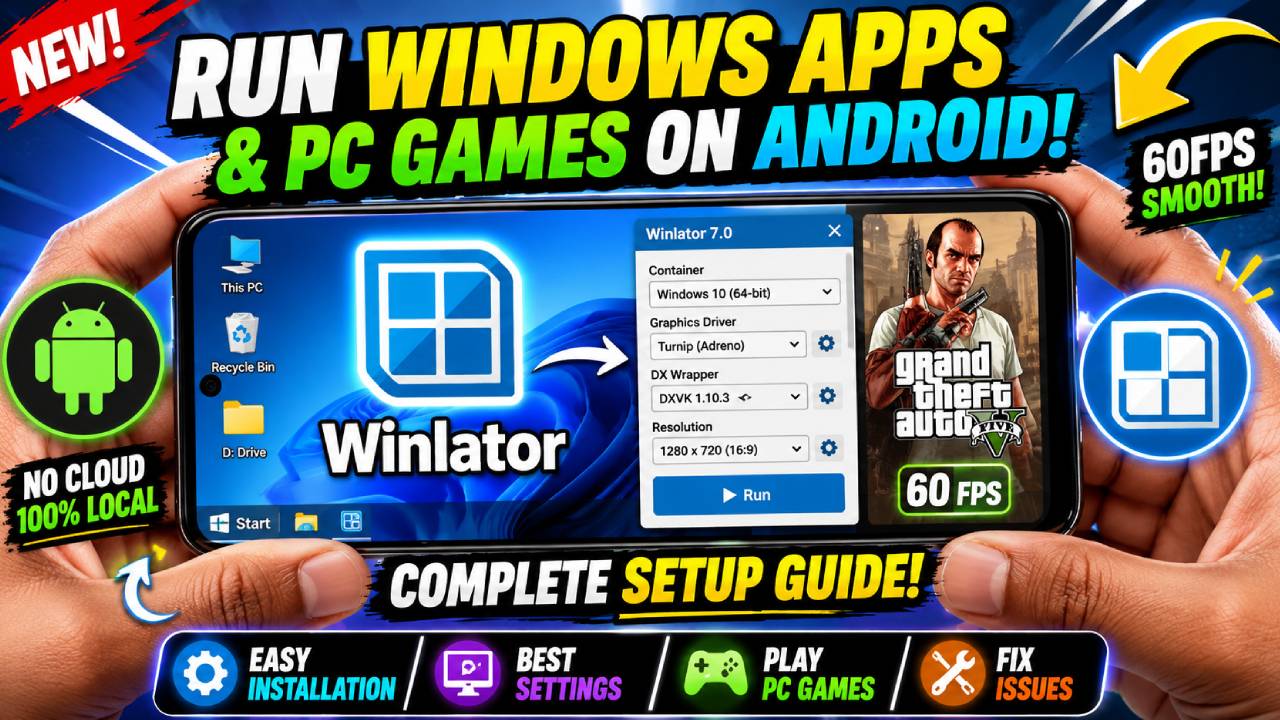
Running Windows applications and PC games on an Android phone was once impossible. Today, Winlator makes it much easier. It is an open-source app that uses Wine, Box86, Box64, and Vulkan to run x86 and x64 Windows executable (.exe) files on Android devices with ARM processors.
Unlike cloud gaming services, Winlator runs applications directly on the phone. There is no need to stream games over the internet. Everything runs locally, giving users better control over performance, game files, and settings. It can run many classic PC games, indie games, and Windows programs on supported Android devices.
This How To Use Winlator guide explains how to install Winlator, create a container, choose the right settings, and fix common problems.
Hardware Requirements
Winlator translates Windows x86 instructions into ARM instructions while the application is running. Because of this, the phone’s hardware plays a big role in performance.
Processor
Phones with Qualcomm Snapdragon processors usually give the best results. These devices support Turnip drivers, which are open-source Vulkan drivers made for Adreno GPUs. Turnip provides better graphics performance and higher compatibility.
Phones with MediaTek Dimensity, Samsung Exynos, or Google Tensor processors also support Winlator. However, these devices normally use VirGL instead of Turnip. VirGL works on many GPUs but usually delivers lower performance.
RAM
A minimum of 6GB RAM is recommended.
Phones with 8GB to 12GB of RAM provide a much smoother experience, especially when running larger games or demanding Windows applications.
Storage
Store games and installers in the phone’s internal storage. Do not run games directly from compressed ZIP, RAR, or 7Z files. Extract everything before installing.
Installing Winlator
Winlator runs Windows software inside isolated environments called Containers. Each container stores its own settings and configuration.
Step 1: Install the APK
Download the Winlator APK and open it using the phone’s file manager.
If Android asks for permission to install applications from unknown sources, allow the permission and continue with the installation.
Step 2: First Launch
Open Winlator after installation.
During the first launch, the app automatically extracts its Windows environment and required system files. This process may take several minutes.
Do not close the application until the setup is complete.
Step 3: Prepare Game Files
Winlator automatically maps the Android Downloads folder as the virtual D: drive.
Move every Windows installer, setup file, or game folder into the Downloads folder. These files will appear inside the Windows environment after the container starts.
Creating a Container
To create a container, tap the + button in the top-right corner of the main screen.
The container settings control performance and compatibility.
Screen Resolution
The default resolution is 800×600.
Lower resolutions improve performance because the device renders fewer pixels.
For a better widescreen experience, use 960×544 or 1280×720 (720p). These resolutions match the 16:9 aspect ratio used by most Android phones.
If games become slow, lowering the resolution is one of the easiest ways to improve performance.
Graphics Driver
Choose the correct graphics driver for the device.
Turnip should be selected on Qualcomm Snapdragon devices. It provides better Vulkan support and usually delivers smoother gameplay.
VirGL should be used on Mali, PowerVR, Xclipse, and other supported GPUs. Although it supports many devices, performance is usually lower than Turnip.
DX Wrapper
The DX Wrapper converts DirectX graphics into Vulkan.
DXVK is the best choice for most DirectX 9, DirectX 10, and DirectX 11 games. Version 1.10.3 or newer is recommended.
If a game crashes, displays a black screen, or has graphics problems, switch to WineD3D. It focuses more on compatibility than performance.
For DirectX 12 games, choose VKD3D. This option is mainly used for testing because support for DirectX 12 is still limited.
Wine Settings
Open the Wine Configuration section and find the Video Memory Size setting.
Choose the VRAM value based on the phone’s physical RAM.
- 6GB RAM: 2048MB VRAM
- 8GB RAM: 4096MB VRAM
- 12GB RAM or more: 4096MB to 6144MB VRAM
Using the correct VRAM setting helps games load textures more smoothly.
If audio stutters or there is no sound, open the DX Components section and change DirectSound to Native Windows.
Advanced Settings
Open the Advanced section inside the container settings.
Enable Experimental WoW64 Mode for better 64-bit application support.
Next, choose the correct Box86 and Box64 preset.
The Performance preset is best for lightweight games and applications that need more speed.
The Compatibility preset is better for older or heavier games that may crash with aggressive optimizations.
After finishing the setup, save the container.
Running Applications
Tap the three-dot menu beside the container and select Run.
The container will start and display a virtual Windows desktop.
Use touch controls to move the mouse pointer, or connect a USB or Bluetooth mouse and keyboard for easier navigation.
Open Computer, then open the D: drive.
Find the Windows installer or game folder that was copied into the Downloads folder.
Run setup.exe or install.exe and complete the installation. Install the software into the default virtual C: drive unless another location is required.
Setting Up Controls
Winlator supports both on-screen controls and physical controllers.
While a container is running, swipe from the left edge of the screen and open Input Controls.
Choose a preset such as Virtual Gamepad or RTS Layout.
Users can also create custom control layouts. Buttons can be moved, resized, and assigned to different keyboard keys or controller buttons. This makes it easier to play games with different control schemes.
Troubleshooting
Some applications may not work correctly because Winlator translates Windows software into ARM instructions.
Application Crashes
If an application closes immediately after launching, some Windows runtime files may be missing.
Open the virtual Windows Start Menu, go to Tools, and install WineMono, WineGecko, and the Visual C++ Runtime Libraries (2015–2022).
These components solve many startup problems.
Mouse Problems
If the mouse cursor does not move correctly or clicks in the wrong place, close the container.
Open the container settings and enable Disable Mouse Warp Override.
Then change the display scaling to 96 DPI.
This usually fixes cursor alignment issues.
Low Performance
Running Windows software on Android creates heavy CPU and GPU usage.
If the phone becomes hot or frame rates drop, lower the resolution to 800×600.
Enable a 30 FPS or 60 FPS frame limit inside the DXVK settings.
Also disable VSync inside the game’s graphics settings if it is available.
Lower graphics settings reduce the workload on the processor and help keep performance stable during longer gaming sessions.
Conclusion
Winlator makes it possible to run many Windows applications and PC games directly on Android without using cloud streaming. Choosing the correct graphics driver, resolution, DX Wrapper, and container settings can greatly improve compatibility and performance. If problems appear, changing the graphics settings, installing the required Wine components, or lowering the resolution often solves them. With the right setup, Winlator provides a simple way to enjoy Windows software on supported Android devices.