Mobile gaming is no longer limited to simple games. Today, many Android games include detailed graphics, advanced gameplay, online ranking systems, and multiplayer battles. While these games look great on modern phones, they also use a lot of battery power. In many cases, they make phones hot after long gaming sessions. As a result, performance can drop because the device starts to slow itself down to control the temperature.
Because of these limits, many gamers now play Android games on their computers. An Android emulator makes this possible. It creates a virtual Android device inside Windows, so games and apps run just like they do on a phone.
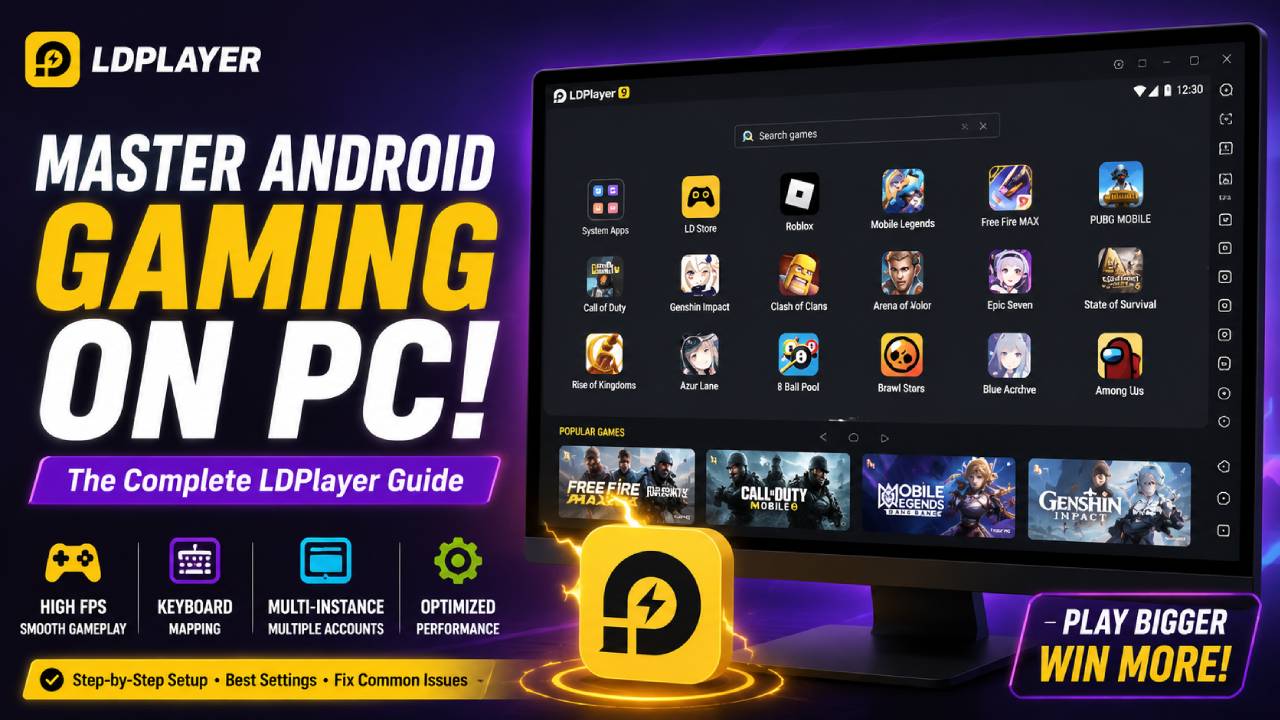
LDPlayer 101 is a complete guide for anyone who wants to learn how to use LDPlayer for Android emulation on a PC. The emulator is known for its fast performance, low system usage, and gaming-focused features. Whether the goal is better keyboard controls, smoother gameplay, automated tasks with macros, or testing Android apps, this guide explains each step from installation to advanced settings.
Why Choose LDPlayer for Android Emulation?
Many Android emulators are available today. However, not all of them offer the same level of speed and stability. Some use a large amount of system resources, while others struggle with demanding games. LDPlayer focuses on smooth performance while keeping resource usage low.
The emulator is designed for both Intel and AMD processors. It uses hardware virtualization to run Android inside Windows as smoothly as possible. This approach helps reduce delays and improves the overall gaming experience.
Low System Resource Usage
Many emulators need a large amount of RAM and CPU power before they work properly. LDPlayer works well even on many mid-range and budget computers. Therefore, users with older hardware can still enjoy good performance without upgrading their entire system.
High Frame Rate Support
LDPlayer supports frame rates up to 120 FPS or even higher on supported monitors. As a result, gameplay feels smoother, animations become more responsive, and fast movements look much clearer during competitive games.
Better Virtualization Performance
The emulator includes system-level improvements that work with virtualization technology. Because of this, users often experience less input delay, fewer small freezes, and smoother gameplay during long gaming sessions.
Hardware and System Requirements
Before downloading LDPlayer, check whether the computer meets the required hardware specifications. Although the emulator can run on basic hardware, better components will provide a much smoother experience.
| Component | Minimum Requirements | Recommended Specifications |
|---|---|---|
| Operating System | Windows 7 / 8 / 10 / 11 (64-bit) | Windows 10 / 11 (64-bit) |
| Processor | Intel or AMD CPU (x86 / x64) | Intel Core i5-10400 or AMD Ryzen 5 3600 or better |
| Memory (RAM) | 4 GB | 8 GB or higher |
| Storage | 5 GB free space on HDD | 10 GB or more on SSD |
| Graphics Card | DirectX 11 or OpenGL 4.0 support | NVIDIA GeForce GTX 1660 or AMD Radeon RX 580 or better |
Important Step: Enable Virtualization
Virtualization Technology, also called VT-x for Intel processors or AMD-V for AMD processors, should be enabled in the BIOS or UEFI settings.
This step is very important. Without virtualization enabled, LDPlayer cannot fully use the computer’s hardware. As a result, users may notice slow performance, audio problems, long loading times, game crashes, or heavy lag.
How to Download and Install LDPlayer
Always download the installer from the official LDPlayer website. This helps make sure the installation file is clean and safe.
Follow these installation steps:
- Download the latest version of LDPlayer. Choose LDPlayer 9 or LDPlayer 10 based on the Android version that best matches the apps or games.
- Open the downloaded installer.
- If a different installation location is preferred, click Setup Path and choose another drive. Installing on an SSD usually improves loading speeds.
- Click Install.
- Wait until the installation finishes.
- Select Start to open LDPlayer for the first time.
After a few moments, the Android home screen will appear and the emulator will be ready for setup.
Step-by-Step Configuration Guide
The default settings work for many users. However, adjusting them based on the computer’s hardware usually gives better performance.
Step 1: Optimize Performance Settings
Click the Gear icon on the right side of the emulator to open Settings.
Under the Advanced tab, adjust these options.
Resolution
Select 1920 × 1080 if the computer has enough performance for full HD gaming.
If games feel slow, change the resolution to 1280 × 720. Lower resolutions reduce the graphics load and usually improve frame rates.
CPU Allocation
Choose about half of the available CPU cores.
For example, if the processor has six cores, selecting three or four cores is usually a good balance between emulator performance and normal Windows tasks.
RAM Allocation
Assign 4096 MB (4 GB) for demanding games.
For simple apps or lighter games, 2048 MB (2 GB) is usually enough.
Step 2: Configure Graphics and Game Settings
Open the Game Settings section.
If the monitor supports high refresh rates, enable High Frame Rate.
Then choose 90 FPS or 120 FPS depending on the monitor’s capability.
Also enable ASTC Texture support. This allows many modern Android games to display textures correctly and improves image quality.
Step 3: Sign in to Google Play
Open the System Apps folder on the home screen.
Select Google Play Store.
Sign in using a Google account.
After signing in, previously purchased apps, cloud saves, game progress, and achievements become available through the Play Store.
Advanced Features
LDPlayer includes several extra tools that improve the Android experience on a PC.
Keyboard and Mouse Mapping
Select the Keyboard Layout icon from the right toolbar.
Different control options can then be placed directly onto the game screen.
Simple Touch
Assign any keyboard key to a single screen tap.
Direction Pad (WASD)
Map movement controls to the WASD keys. This setup works well for RPGs, action games, and many adventure games.
Aim Movement or Mouse View
Lock the mouse inside the game window. This creates a control style that feels similar to many PC first-person and third-person games.
These control options make mobile games much easier to play with a keyboard and mouse.
Multi-Instance Manager
LDPlayer also installs the LDMultiPlayer tool.
This feature allows several Android instances to run at the same time.
Many users use this feature for different gaming accounts, character rerolls, or running multiple apps together without affecting each other.
Each instance works separately, so changes made in one instance do not affect another.
Troubleshooting Common Problems
Even after proper setup, some users may still face technical problems. Fortunately, many of these issues have simple solutions.
Problem 1: Emulator Stops at 50% or 94%
Sometimes LDPlayer may stop loading during startup.
This problem is often caused by graphics driver issues or Windows virtualization features that interfere with the emulator.
Solution
Update the graphics card driver to the newest available version.
Then open Windows Features and disable Hyper-V, Virtual Machine Platform, and Windows Sandbox if they are enabled.
Restart the computer after making these changes.
Problem 2: DirectX or OpenGL Errors
Some systems may show DirectX or OpenGL initialization errors when starting the emulator.
This usually means the graphics settings are not using the correct graphics processor.
Solution
Open the NVIDIA Control Panel or AMD Software.
Set LDPlayer to always use the dedicated graphics card instead of the integrated graphics processor.
Restart the emulator after applying the changes.
Problem 3: Internet Connection Problems Inside Apps
Sometimes Android apps cannot connect to the internet even though Windows is connected normally.
This issue may happen because of the emulator’s network settings.
Solution
Open LDPlayer Settings and go to the Network section.
Change Network Bridging from Disconnect to Enable.
Choose the active network adapter from the available list.
Finally, restart LDPlayer so the Android system receives a new local IP address.
Final Thoughts
LDPlayer gives PC users an easy way to enjoy Android games and apps with better controls and stronger hardware. After the emulator is installed and configured correctly, games usually run more smoothly than they do on many mobile devices. Features such as keyboard mapping, high frame rate support, multi-instance management, and hardware virtualization make it suitable for both gaming and Android app testing.
Following the setup steps, performance adjustments, and troubleshooting methods in this guide helps create a stable Android environment. Once everything is configured properly, LDPlayer becomes a reliable platform for running Android games and applications on a Windows computer.